Tuesday, July 9, 2013

Lync Server 2010 Logging Tool

This article will mainly serve as a field-reference in which customers can use to follow specific steps to capture SIP diagnostic logging and properly package it for review by anyone other than Microsoft's Product Support team.

Although there are already a number of how-to articles on using the native logging tools for OCS and Lync Server most cover just the basic process to quickly grab a capture file. This article goes into a bit more depth on the various settings with examples on using filtering and processing trace files from other environments.

Capturing Trace Files

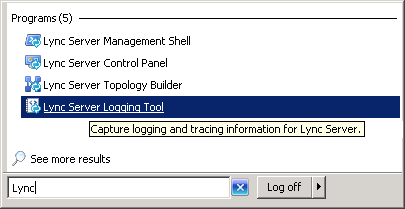
  • Locate and launch the Lync Server Logging Tool on the desired Lync Server.
image

  • Select the desired Logging Options to capture in the trace.  Most commonly this tool is used to troubleshoot SIP communication errors so the basic settings to start with would be to select only the SIPStack component. (S4 can also be added be may not be necessary; usually PSS will ask for both to be enabled.)  In order to capture the most detail possible then All Levels and All Flags should be selected as well.  (There is no need to select all of the individual flag checkboxes, simply checking "All Flags" is sufficient.)

image

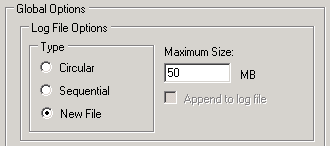
The default Global Options are typically sufficient for a brief capture in a pilot or test environment, but in environments with active users the log files can get large quite quickly, especially when verbose logging is enabled.  Since the default Type is set to Circular once the log file reaches the Maximum Size (20 MB) then old data is overwritten; this can make for a unhelpful trace file.  Increasing the file size and/or enabling multiple trace files will prevent this situation by retaining all data captured during the trace.  Be careful with this setting though as forgetting to stop the trace can eventually use up all available memory on the server.  Leaving circular logging enabled the majority of the time is a safer approach.

  • Change the Type to New File and increase the Maxiumum Size to 50MB.
image

  • Now data is ready to be logged.  Click Start Logging and begin to perform the desired test procedure(s).

Be aware that the server does not start logging data immediately, there is typically a 3-5 second delay before data begins to be recorded.  This is not normally noticeable but the behavior can be seen if the Real Time Option is Enabled.  Either way it recommended to wait a few second before beginning the test scenario otherwise the initial SIP messages may not be captured.

  • Click Stop Logging when the test is completed.

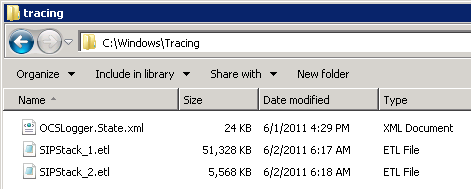
Once the logging has been stopped the trace data stored in memory is then written to one or more Event Trace Log (.etl) files which are saved in the server's configured Log File Folder (C:\Windows\Tracing by default).  This example shows that when the previously set Maximum Size value of 50MB was reached a second log file was created. The OCSLogger.State.xml file also records the logger settings used during the trace (e.g. file option, selected components)
image

Packaging the Results

If working with Microsoft Product Support then these files can be sent directly to them for troubleshooting as PSS has access to the MSSLogToText.exe tool which is needed to convert the binary based ETL data into readable text.  The ETL files will typically compress with a 1:5 ratio so this 50MB file will be under 9MB which should be small enough to be sent via SMTP to most e-mail systems these days. 

But for all other uses outside PSS an additional step is required to convert the trace files into text.  Using the Logging Tool there are two different options available: View Log Files and Analyze Log Files.  Both of these buttons along the bottom of the Logging Tool perform the same initial action: converting the binary ETL data into a flat text file.

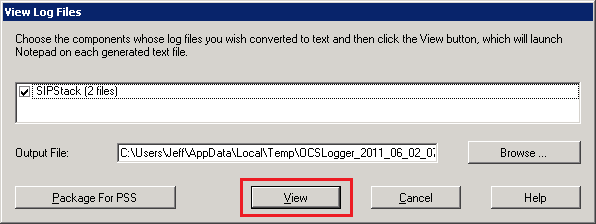
  • To simply view the log files in the raw text format select View Log Files from the Logging Tool's main window and click View on the following window.
image

Note that the Output File directory is set by default to the current user's %TEMP% directory, but if desired the directory can be changed to another location prior to converting the file.

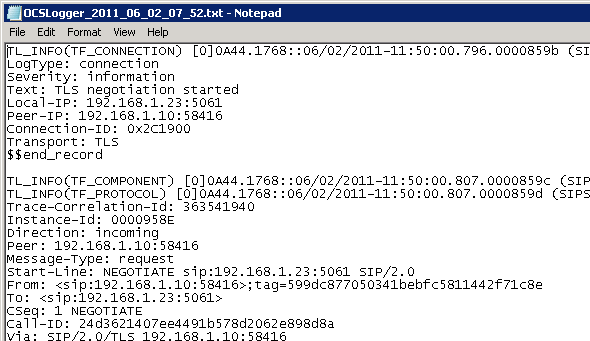
The output file will be opened automatically in the server's default text editor.
image

The converted file was automatically saved in the Output File path using a default naming convention for each file of OCSLogger_<year>_<month>_<day>_<UID>.txt.  This text file will typically be about three times larger than the binary ETL file.  Additionally the flat text file can usually be compressed with a 1:10 ratio since it is just ANSI text data.

image

For example if a 10MB file is the largest which could be emailed then it is recommended to set a Maximum Size on the Log File Options of about 30MB (30MB .etl = ~90MB .txt = ~9MB .zip).

Reviewing the Results

But if not simply packaging a text file for someone else to review then viewing the log data using Notepad is a quick way to go blind trying to figure out what is actually happening.  Unless very familiar with reading SIP trace information it is much preferred to use the Snooper utility which is part of the Lync Server 2010 Resource Kit Tools.  Once this package is installed on the Lync Server then the Analyze Log Files option from the Logging tool can be used to open the converted trace text file in Snooper instead of Notepad.

  • To view the log files in select Analyze Log Files from the Logging Tool's main window and click Analyze on the following window.

image

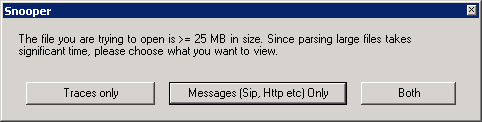
The output file will be opened automatically in Snooper.  If the trace data is larger than 25MB then Snooper will prompt to only load Traces, Messages, or Both.  Typically only the Messages need to be viewed for troubleshooting.
image

  • Select the Messages tab to view the captured tracing information.  (A future blog article will address the usage of Snooper as that is an entirely other topic in itself.)

image

Filtering Trace Files

When running trace captures in pilot or small environments it is typically easiest to just use the default settings mixed with customizing the log file size and type. But when troubleshooting issues in production Lync deployments these log files can grow very large fast and quickly become unmanageable. In these scenarios it is advantageous to utilize filtering to only capture data related to the users or systems in question by using SIP URIs or IP Addresses.

  • Click the Edit button under the Filter Options section of the Logging Tool's main window.

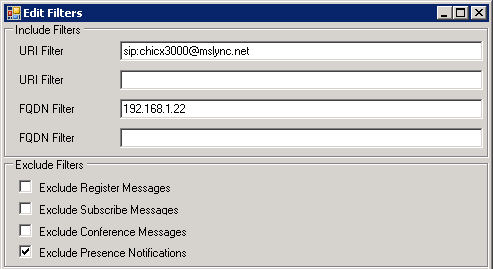
The Edit Filters window contains both Include and Exclude filters to help narrow down the captured data.  As an example only data related to a specific Lync user placing calls into the Exchange UM server should be logged.  So the user's SIP URI and the Exchange UM server can be filtered for, while some unnecessary data can be filtered out for those inclusions as well.

  • In the Include Filters section enter the SIP URI of the desired Lync user account under one of the URI Filter fields. (e.g. sip:chicx3000@mslync.net)
  • Additionally enter the IP address (or FQDN) of the Exchange UM Server in the first FQDN Filter field. (e.g. 192.168.1.22)
  • In the Exclude Filters section enable Exclude Presence Notifications to hide unwanted messages in the trace.
image

  • Click OK to save the changes and Lync will automatically begin to apply the options to the Central Management Store and force replication between servers.  This insures that all servers share the same filtering options when performing traces simultaneously on multiple servers (Front End, Director, Edge, etc).


image

image

image

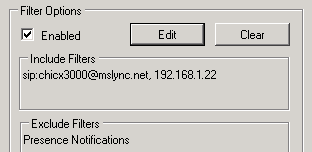
  • Check Enabled under the Filter Options, which will immediately kick-off replication once again.  The configured filter options will appear on the main window and logging can be started.
image

Converting Foreign ETL Files

If an ETL file from another server or Lync environment needs to viewed usually Microsoft PSS needs to do this with a separate tool, discussed earlier in this article.  But the Lync server Logging Tool actually has an executable switch to allow it to analyze log files not captured directly from that server.  Normally if an ETL file was simply just dragged into the default tracing folder the tool will be unable to either recognize or open that file.  But if the logging tool is manually launched with the PSS switch enabled then it will allow conversion and viewing of this file.

  • Copy the external trace file to any directory on the same computer where the Lync Logging and Snooper Resource Kit tools are installed.  (e.g. c:\temp)
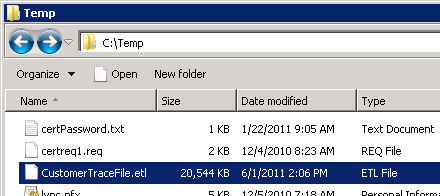
image

  • From the Windows Command Prompt launch the Lync Server Logging Tool using the PSS switch with the location of the ETL file.

"C:\Program Files\Common Files\Microsoft Lync Server 2010\Tracing\OCSLogger.exe" "/pss:C:\Temp"

Once the Logging Tool opens the Log File Folder will now display the "C:\Temp" directory specified.

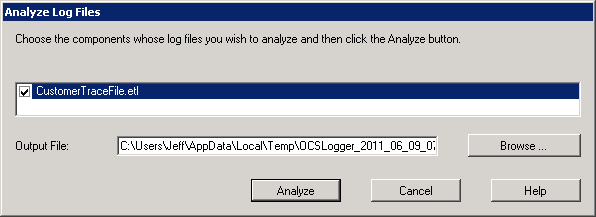
  • Select the Analyze Log Files button and select the CustomerTraceFile.etl component.  The Analyze button will now be available; click it to open the file in Snooper.

image


Copied from : http://blog.schertz.name/2011/06/using-the-lync-logging-tool/
Monday, June 24, 2013

Use the Lync Server Logging Tool to Troubleshoot: 20 Tasks Every Lync Administrator Should Know

The Lync Server 2010 Logging Tool is a handy troubleshooting aid for the Lync platform. It helps administrators locate problems on Lync Server roles by capturing messages from them.

What's the Logging Tool Useful For?

Every admin knows how useful log files are. If a network line is choking or a server command is down, the log file will tell you what & where. Lync's Logging Tool does exactly the same thing. Logs are saved as .etl files in C:\Windows\Tracing (of the server it's running on) by default.

Note: Microsoft does not recommend leaving the Logging Tool running all the time. You'll drain server performance that way. Only activate the Logging Tool when you want to capture logs for a certain server.

How Do I Start it Up?

Run the Logging Tool from the Management Shell or a command prompt. By default, you'll find it at:
%ProgramFiles%\Common Files\Microsoft Lync Server 2010\Tracing\OCSLogger.exe

Remember! The server you run this on determines what information you'll capture. You will have different logs on a Director than you would on Enterprise Voice.

How Do I Configure Logging to Get What I Need?

Local options have three 'fields' if you will: Components, Levels and Flags.

Components are the components in the Lync Server role you're logging. They'll vary depending on whether you're on a Director, Edge Server, etc. You can enable or disable components after logging is started, so finding what areas you want to log won't take long.

There are 6 Levels at which you can log:

  • Fatal Errors
  • Errors
  • Warnings
  • Information
  • Verbose
  • All

These levels are inclusive; each time you move down the list, your logging includes the previous level. For example, let's say you have a communication hiccup between servers. It might be an error; it might not. You set the Logging Tool to Information – thus scanning for Information, Warnings, Errors and Fatal Errors.

(Quick Tip: Start with Warnings for your initial logs. That will focus you on anything serious. If the issues you're looking at don't show up at this stage, re-run the logs at the Information level. And so on up.)

Flags are call-outs for each component. Logging flags are useful for drilling into a component's log. Microsoft Support can even use them during advanced troubleshooting.

How do I View Log Files Once They're Captured?

The Event Trace Log (.etl) files the Lync Logging Tool creates are regular old binary files. They are NOT text files though. You must click View Log Files in the main Logging Tool window to see them.

When you do this, you'll see a list of components logged. Uncheck the boxes by any components you don't want to view logs for. Then you can output logs to text files. By default, output log files are saved in \AppData\Local\Temp\ under your Users folder. The text files will be named "OCSLogger_DateTime".

How Do I Use These to Troubleshoot?

There are two ways to troubleshoot using these logs. One, the eyeball method: Go through them one-by-one, server by server. Narrow down the levels, and focus on only a few components at a time. Otherwise you'll be there for quite a while.
Two, analyze the log files with Snooper. Snooper is a separate tool that analyzes Lync log files. It's in the Lync Server 2010 Resource Kit (download it here if you don't have it already).
With Snooper you can look at things like:

  • Traces in UCCP log files (server and client)
  • SIP Stack
  • Mediation Server
  • Database size
  • Resource diagnostics
  • PSOM/LDM
  • Recordings from Monitoring Server (if you have one)

VSS-based backup

Volume Shadow Copy Service (VSS) is a Windows service for capturing and creating snapshots called shadow copies.  VSS, which operates at the block level of the file system, provides a backup infrastructure for Microsoft operating systems. 

Windows VSS has three major components in addition to the service -- writer, requester and provider. The service sits logically in the center of the other components and handles communication between them.

VSS writer -  Each VSS-aware application installs its own VSS writer to a computer during the initial installation. 

VSS requestor
 -  Any application that needs to quiesce data for capture can play the role of VSS requestor.

VSS provider
 - The provider creates and manage the shadow copies of data on the system. 
 

Here's how VSS works:  The VSS requestor announces that it needs to create a server snapshot. Prior to creating that snapshot, it queries the server to determine which VSS writers have been installed. (It needs this list so it can later instruct each writer to quiesce its associated application).  Then, the VSS requestor instructs each VSS writer to accomplish whichever task is needed for data quiescence. After each VSS writer reports that it has completed pre-backup tasks, the VSS requestor instructs the VSS provider to create a snapshot. The provider tells the requestor where to go to locate the data it needs and the backup begins. When the VM backup is complete, the VSS requestor announces that it has completed its activities. This announcement instructs each VSS writer to perform any post-backup tasks necessary so the computer and its applications can return to regular operation.


http://searchdatabackup.techtarget.com/definition/VSS-based-backup

Description of Full, Incremental, and Differential Backups

Full Backup (or Reference Backup)

When you set the Backup Type setting to Full, all the files and folders on the drive are backed up every time you use that file set. To set the backup type, click Options on the Settings menu, and then click the Backup tab. 

Example:
  1. In Backup, click the drives, files, or folders to back up, and then click Next Step.
  2. Click the destination (where you want the files backed up to).
  3. On the Settings menu, click Options, click the Backup tab, click "Full: backup of all selected files," and then click OK.
  4. On the File menu, click Save As and name your backup set. Once saved, click Start Backup.
  5. Provide a name for the selected drive, files, or folders in the Backup Set Label dialog box, and then click OK.
Advantages:
  • All files from the selected drives and folders are backed up to one backup set.
  • In the event you need to restore files, they are easily restored from the single backup set.
Disadvantages:
  • A full backup is more time consuming than other backup options.
  • Full backups require more disk, tape, or network drive space.

Incremental Backup

An incremental backup provides a backup of files that have changed or are new since the last incremental backup. To start the process, a file set with the incremental option selected is used to perform a backup. You can select the backup type by clicking Options on the Settings menu, and then clicking the Backup tab. 

For the first incremental backup, all files in the file set are backed up (just as in a full backup). If you use the same file set to perform a incremental backup later, only the files that have changed are backed up. If you use the same file set for a third backup, only the files that have changed since the second backup are backed up, and so on. 

In Backup, you can select files and/or folders to be backed up. If you select a folder, all the files and folders within that folder are selected. In an incremental backup, if you select a folder, files that are added to the folder are included during the next backup. If you select specific files, files that are added to the folder are not included during the next backup. 

Example:
Monday - Perform the first incremental backup of selected files and/or           folders using a file set with the Incremental option enabled.    Tuesday - Perform another backup with the backup file set you created            Monday. Only files that have changed since Monday's backup are            backed up.    Wednesday - Perform another backup with the backup file set you created              Monday. Only files that have changed since Tuesday's              incremental backup are backed up.  				
To reset a file set so that the next backup backs up all files, and not just files that are new or have changed, follow these steps:
  1. On the File menu, click Open File Set. Click the file set you want to use, and then click Open. Click Next Step.
  2. Click the destination (where you want the files backed up to).
  3. On the Settings menu, click Options, click the Backup tab, click "Full: backup of all selected files," and then click OK.
  4. On the File menu, click Save to save your backup set.
  5. Repeat steps 1 and 2.
  6. On the Settings menu, click Options, click the Backup tab, click "Incremental: backup of selected files that have changed since the last full backup," and then click OK.
Advantages:
  • Backup time is faster than full backups.
  • Incremental backups require less disk, tape, or network drive space.
  • You can keep several versions of the same files on different backup sets.
Disadvantages:
  • In order to restore all the files, you must have all of the incremental backups available.
  • It may take longer to restore a specific file since you must search more than one backup set to find the latest version of a file.

Differential Backup (Not Supported in Backup)

A differential backup provides a backup of files that have changed since a full backup was performed. A differential backup typically saves only the files that are different or new since the last full backup, but this can vary in different backup programs. Together, a full backup and a differential backup include all the files on your computer, changed and unchanged. 

Example:
Monday - Perform a full backup and save the file set.    Tuesday - Perform a differential backup using the same file set. All files            that have changed since the full backup are backed up in the            differential backup.    Wednesday - Perform a differential backup using the same file set. All the              files that have changed since Monday's full backup are backed              up.  				
Advantages:
  • Differential backups require even less disk, tape, or network drive space than incremental backups.
  • Backup time is faster than full or incremental backups.
Disadvantages:
  • Restoring all your files may take considerably longer since you may have to restore both the last differential and full backup.
  • Restoring an individual file may take longer since you have to locate the file on either the differential or full backup.

Differences between OCS 2007 /2007 R2 & Lync Server 2010

Let's see some good differences between OCS 2007/R2 and Lync 2010,
Lync 2010 is very good perspective of load balancing and administrative.

OCS 2007 / 2007 R2: Virtualization not supported accepts some roles.
Lync Server 2010Every role can be either virtual or physical.
OCS A/V conferencing service cannot work separate.
LYNC A/V conferencing service can run in a standalone server role which we can call A/V Conferencing Server.
OCS No specific limits for A/V conferencing pool.
LYNC If site has more than 10,000 users, we recommend that you deploy a separate A/V Conferencing pool.
OCS No Survivable Branch Appliance.
LYNC Survivable Branch Appliance, which is a new device introduced in Lync Server 2010.
OCS Mediation role cannot be collocated with Front End Role. LYNC Collocation of mediation with Frond End is recommended if you are not using SIP trunking or Direct SIP.
OCS No Topology Builder.
LYNC Lync 2010 giving you the opportunity to create your own topology for deployment.
OCSNo Central Management Store kind of thing.
LYNC In Microsoft Lync Server 2010, configuration data about servers and services is moved to the Central Management store. Read-only copies of the data are replicated to all servers in the topology, including Edge Servers and survivable branch appliances
OCS No Management Shell accepts LCSCMD command.
LYNC The Lync Server 2010 Management Shell is a new method of administration and management.
OCS No Role base access control.
LYNC Lync 2010 introduces role-based access control (RBAC). Lync Server 2010 includes 11 predefined roles that cover many common administrative tasks; also you can create custom roles.
OCS MMC for Administration.
LYNC Administration console is no longer using MMC, Lync Server Control Panel replaces the MMC administrative interfaces
OCS No load balancing for SIP traffic.
LYNC The Lync Server 2010 introduces DNS load balancing for SIP and media traffic (you will still need hardware LB for other traffic such as HTTP however this is the easiest part in configuring a HW load balancer)
OCS Edge Server is separate and in DMZ.
LYNC You manage Edge Servers from the internal network. All configuration data for servers and services resides in the Central Management database, which you can manage by using internal administrative tools.
OCS No Support for hosted Exchange UM.
LYNC Lync Server 2010 introduces support for integration with hosted Exchange UM.
OCS No Support for Enhanced 9-1-1.
LYNC Lync supports Enhanced 9-1-1 (E9-1-1) as part of your Enterprise Voice deployment.
OCS 1 Mediation means 1 Gateway.
LYNC New for the Mediation Server in Microsoft Lync Server 2010 is the ability for a single Mediation Server to route outbound calls through multiple gateways.
OCS No separate pool for Mediation.
LYNC Lync Server 2010 has the ability for a Mediation Server to be deployed as a pool; this pool can be collocated with the Front End pool, or can be a standalone pool.
OCS MOC cannot be updated through WSUS.
LYNC Lync client can be updated through WSUS.
OCS No support for Analog devices.
LYNC Lync Server 2010 provides support for analog devices. Specifically, the supported analog devices are analog audio phone and analog fax machines. Now you can configure the analog gateways and devices in your organization to use Lync Server 2010.

Lync 2010 Client-Side Logging and Diagnostics

This topic describes how to use logging tools, Event Viewer, the Microsoft online services diagnostic and logging (MOSDAL) support toolkit, and the Microsoft Lync 2010 configuration information window to gather information that you can provide to the second-level support team for help troubleshooting Lync 2010.

Client-side logging collects information that the second-level support team can use to determine the cause of an issue. There are four types of log files that are most useful for troubleshooting issues with Lync:

  • Client logs   Document the behavior of Lync, and add diagnostic messages to Windows event trace log (ETL) files. 
  • Unified Communications Client Platform (UCCP) logs   Track server connection issues. 
  • Windows ETL files   Record significant events on a computer, such as when a user logs on or when a program encounters an error.
  • Media logs   Record the status of audio and video connections. 

Enable Lync client-side logging by doing the following:

  1. In the upper right corner of the Lync main window, click Options (gear icon). 
  2. In the Lync - Options dialog box, click General
  3. Under Logging, select the Turn on logging in Lync and Turn on Windows Event logging for Lync check boxes. 
  4. Click OK
  5. Restart Lync, and then try to reproduce the issue. 

The file Communicator-uccp.log is created in the directory username\tracing.  Also, Lync writes the following types of errors to the Windows ETL files, along with detailed troubleshooting information:

  • Errors that prevent a user from logging on to the server, such as host or domain name errors or a valid certificate that is not valid
  • Diagnostic messages returned by the server, such as version check failures, problems with log-in credentials, or errors generated in response to a SIP INVITE message from the client

Windows ETL files are typically created on your computer in the username\tracing folder and enable administrators and Microsoft support technicians to troubleshoot problems.

For media logs, if the Collect Logs button is enabled in the Lync UI, you can use it to help troubleshoot audio and video quality issues by doing the following:

  1. In the Lync main window, click Collect Logs.
  2. In the Collect Logs dialog box, in the Select issue type list, click the issue category. 
  3. If the Select issue details list is available, click the issue subcategory.
  4. (Optional) In the text box, type an additional descriptive detail.
  5. If you see a notification about poor audio or video quality, click Yes.
  6. (Optional) To archive the final 30 seconds of the last call, select the Include a sample voice recording of your latest call check box.
  7. (Optional) To have Lync capture the desktop, select the Include a screenshot of your desktop (highly recommended) check box.
  8. Click OK.

The media log (.cab) files will be gathered up and stored in the userprofile\tracing folder and can be sent to your Microsoft support team. If you are having repeated problems with audio or video calls, you can ask your users to create a new .cab file any time they encounter a problem.

Use Event Viewer to get details about a specific error message, and then search Microsoft TechNet or Microsoft Help and Support for the error and event ID. Event Viewer does the following:

  • Provides basic single-computer health monitoring and data for troubleshooting scenarios
  • Displays event logs available on the system
  • Enables troubleshooters to browse, filter, and navigate events to determine what is not working on the system and to help determine the cause of an issue and how to fix it

Before using Event Viewer, ensure that Windows Event logging for Lync is enabled by clicking Options from the Lync main window, clicking General, and then looking under Logging.

For details about Event Viewer, see the following (as applicable):

The MOSDAL support toolkit collects system configuration, network configuration, and service-based programs' configuration and logging data, along with performing network diagnostics. For details, see Microsoft Knowledge Base article 960625, "The Microsoft Online Services Diagnostics and Logging (MOSDAL) support toolkit" at http://go.microsoft.com/fwlink/p/?LinkId=3052&kbid=960625.

To enable MOSDAL logging, do the following:

  1. Download and install "MOSDAL (Microsoft Online Services Diagnostics and Logging) Support Toolkit" from the Microsoft Download Center athttp://go.microsoft.com/fwlink/p/?LinkId=212237.
  2. Enable Verbose Logging: Click Start, click All Programs, click MOSDAL, click Enable-Disable Verbose Logging, and then click Office Communicator
  3. Run MOSDAL Toolkit: Click Start, click All Programs, click MOSDAL, and then click MOSDAL Support Toolkit
noteNote:
To enable tracing in Windows Vista, you must add the user to the Performance Log Users group. After the user is added, he or she must log off and then log back on for the setting to take effect.

Configuration information is available in client-side logs and the registry. It is also available in the Lync configuration information window, where it is easier to read.

To open the Lync configuration information window, press Ctrl and click the Lync icon in the Windows notification area, and then click Configuration Information.

The values listed in this window are retrieved during logon by in-band provisioning from the server or set by Group Policy. In-band provisioning involves configuration information sent from a server to a client program.

The following configuration information is important to collect when gathering information to troubleshoot Lync issues:

  • Server SIP URI   Specifies the server, port, and mode (Transmission Control Protocol [TCP] or Transport Layer Security [TLS]) that the client is currently connected to. 
  • MAPI Information   Specifies the status of the Microsoft Exchange Server mailbox integration.
  • MRAS Server   Specifies whether the user has valid credentials for the A/V. Edge Server 
  • GAL Status   Specifies the address used to download the address book. 
  • URL Internal from Server   Specifies the URL used for the address book download. 
  • URL External from Server   Specifies the URL used to expand distribution groups. 
  • Inside User Status   Specifies whether the user is connected to the internal Microsoft Lync Server 2010 or the Edge Server.
  • SIP Server URI   Specifies whether the user is connected by using TLS or TCP.

Thursday, June 20, 2013

Lync 2010 Edge Servers and IP Requirements – NAT vs Public IP

To this date, I still see a lot of confusion as to the IP requirements of Lync 2010 Edge Servers.  I have seen the following questions:

  • Why do we require Public IP addresses on all 3 Lync Edge Roles when using Hardware Load Balancing?
  • Why does the Audio/Video Edge Role need a Public IP when behind a Hardware Load Balancer?
  • Why can we NAT when we're doing DNS Load Balancing?
  • Why can't we have a mix of Public IP and NAT'd IPs on the same Edge Server?

Have you been pondering the answer to any of the above four questions? If so, this blog article is for you.  Read on…

Edge IP Requirements and Assumptions

First of all, let's list out Edge Networking requirements and assumptions according to the official Lync 2010 documentation (only listing the ones relevant to this document to preface my own points):

  • Two network interface cards (NICs) configured as follows:
    • Edge internal interface is on a different network than the Edge external interface.
    • The Edge external interface NIC has three IP addresses bound to it (that is, Access, Web Conferencing and A/V, with the Access IP address set to primary and the other two IP addresses set to secondary).
    • Only one default gateway is configured and it is assigned to the Access Edge external interface and pointed to the external firewall's IP address.
  • The NIC for the Edge external interface and the NIC for the Edge internal interface are on two separate networks that do not have routing configured between them.
  • Windows Server 2008 strong host model is used on all Edge Servers. For details, see "The Cable Guy: Strong and Weak Host Models" at http://go.microsoft.com/fwlink/?LinkId=178004
  • There is a route from the network containing the Edge internal interface to any networks that contain Lync 2010 clients or servers running Lync Server 2010.
  • All Edge external interfaces use either NAT, with destination IP addresses changed inbound and the source IP addresses changed outbound combined with DNS load balancing. Or, they use publicly routable IP addresses combined with hardware load balancing.
    • A hybrid configuration with Access Edge service and Web Conferencing Edge service behind NAT and the A/V Edge service configured with a publicly routable IP address, is not supported in Lync Server 2010.

In Lync Server 2010, only 2 NICs are supported on the Edge Role

Some history information on Office Communications Server (OCS) 2007 R2

In Office Communications Server (OCS) 2007 and OCS 2007 R2, we generally saw two types of NIC Configurations:

Note: Keep in mind that while Private IPs are shown above, you can alternatively use Public IP Address on the NICs themselves.

Method #1

Every Role has its' own dedicated NIC. This is recommended due to people having issues in the past with communications when roles share IP Addresses on the same NIC.

Method #2

It is also possible to use one NIC for the Audio/Video Edge Server, Web Conferencing Edge Server, as well as the Access Edge Server. Because of this, all 3 Edge Server Roles would have Private IPs meaning they can all be on the same NIC. You would then use a dedicated NIC for the Internal NIC.

Method #1 worked just fine out of the box with Windows 2003.  Windows 2008 and using Windows 2008 R2 both use the new Strong Host networking model which introduce some complications when using Method #1.  There are some security differences with the Strong Host model than what the Weak Host model used.  For example, if traffic comes in on one interface, it's going to leave back out that same interface.  But with Windows 2003 networking, you can only have one default gateway.  So there are some tricks to do with multiple NICs such as assigning multiple Default Gateways and tweaking your Windows routes.  Jeff Schertz, Lync MVP, details this on his blog article here.  Generally, Method #1 will give you greater performance benefits but with how OCS scales and its sizing guidance, 2 NICs are fine.

Fast Forward to Lync Server 2010

See how complicated this all was in OCS 2007 R2?  Should I use 2 NICs?  Should I use 4 NICs?  If I use 4 NICs, should I create additional static routes?  Should I disable strong host model?  This complication is unnecessary.  This is why we have the following requirement listed above which I have again posted here:

  • Two network interface cards (NICs) configured as follows:
    • Edge internal interface is on a different network than the Edge external interface.
    • The Edge external interface NIC has three IP addresses bound to it (that is, Access, Web Conferencing and A/V, with the Access IP address set to primary and the other two IP addresses set to secondary).

We can see that based on this requirements, we must now use only 2 NICs.  In the requirements listed above, you may also have seen the following:

  • All Edge external interfaces use either NAT, with destination IP addresses changed inbound and the source IP addresses changed outbound combined with DNS load balancing. Or, they use publicly routable IP addresses combined with hardware load balancing.
    • A hybrid configuration with Access Edge service and Web Conferencing Edge service behind NAT and the A/V Edge service configured with a publicly routable IP address, is not supported in Lync Server 2010.

What this means is, if we're using a single Edge Server or DNS Load Balancing and are using NAT, the external interface must contain all Public IP Addresses.  There's no hybrid configuration.  If we're using a single Edge Server or DNS Load Balancing and are using Public IP Addresses, the external interface must contain all Private IP Addresses.  If we're using a Hardware Load Balancer, documentation has always mentioned the A/V role requires a Public IP Address.  This is still true with Lync Server 2010.  But because there is no hybrid configuration (due to simplicity), that means all Lync Server 2010 Edge Roles must now use Public IP Addresses as well.

The NIC Model in Lync Server 2010 is as follows:

We can see if we're using a single Edge Server or DNS Load Balancing, we can use either NAT or Public IPs on the External NIC.  But if we're using Hardware Load Balancers, we must use Public IP Addresses on the external NIC.  This brings is into our next topic.

Why do we need Public IP Addresses on our Lync 2010 Edge Server's External Interface when using Hardware Load Balancers?

There is a lot of information to digest to fully understand why we need to use a Public IP on a Lync Server 2010 Edge Server's External Interface when using Hardware Load Balancers.  I will do my best to explain thoroughly.

Let's start with te following blog article which provides a good summary on Public IP requirements for the external interface of the Edge Server for the Audio/Video Edge Role: http://blogs.technet.com/b/chlacy/archive/2008/03/12/a-v-edge-and-publicly-routable-ip-addresses-part-ii.aspx

It states,

The external A/V Edge requires a publicly routable IP address for several reasons.  First, the A/V Edge server implements the STUN protocol, a mechanism whereby the A/V Edge server reflects back the IP address it saw from a user's home router.  This home router IP address is used to enable the use of efficient media paths using the ICE protocol and is also needed to ensure proper IP permissions are set on the A/V Edge server's 50,000 port range.  If the A/V Edge external address was behind a NATed IP, the A/V edge server would return that address instead of the address of the home router, leading to less efficient (sometimes broken) media paths and permission issues on the 50,000 port range.  A second reason for publicly routable IPs is to support UDP load balancing.  For real time audio/video traffic, UDP is the preferred protocol to transfer RTP packets.  However, UDP is a stateless protocol, so some load balancers distribute UDP packets to the servers without any context for the current session.  To mitigate this, the A/V edge server returns its external IP address on the first UDP packet of a media session, and OC or the Meeting Console client sends subsequent UDP traffic directly to that IP address instead of through the load balancer.  In order for this mechanism to work, the external IP must be publicly routable.  Note that supporting a publicly routable IP address on the external edge does not preclude a company from using a firewall.  To the contrary, Microsoft recommends that all externally facing servers be protected with a firewall…provided that firewall does not NAT the IP address.

Source Network Address Translation (SNAT)

In order to fully understand the above and what it means for Audio/Video needing a Public IP (and therefore based on what was discussed above, all other Edge Role's would also need Public IPs for the external interface), we must first understand how Load Balancers work with Source Network Address Translation (SNAT).

To put it simply, SNAT essentially changes the source address in the IP header of the packet to be the IP of the Hardware Load Balancer.  What this means, if a Hardware Load Balancer sends traffic to a server, the Source IP will be the hardware load balancer meaning the server will return the traffic to the Hardware Load Balancer and the Hardware Load Balancer will then communicate back to the client who initiated the original communication.  The server will never directly communicate back to the originating client.

Lets demonstrate this in a one armed SNAT configuration for a typical Edge Server.  My explanation of SNAT is based on Andrew Ehrensing's Teched Video on Exchange 2010 Load Balancing which you can find here which will explain SNAT based on all private IP Addresses.  Later on, I'll explain how this relates to Lync Server 2010 Edge Server's Access Edge, Web Conferencing Edge, and Audio/Video Edge IPs.

As we can see in this screenshot, we have a Hardware Load Balancer with a NIC assigned as 10.10.10.5.  Because this NIC belongs to the 10.10.10.0/24 network, we can create a Virtual IP Address of 10.10.10.6 which is what clients will connect to.

Our first packet will be from the Client Computer with an IP of 10.10.10.40 to the Hardware Load Balancer's Virtual IP Address of 10.10.10.6.

We now see SNAT at work.  When the traffic is sent to the server, we see the Source IP is defined as the Hardware Load Balancer's Self IP.  This means that the Server will see the Source IP as 10.10.10.5 instead of 10.10.10.40 and because of that, the server will return the traffic to 10.10.10.5 instead of 10.10.10.40.

As we can see, the Server will respond to 10.10.10.5 with the requested data instead of responding to 10.10.10.40.

We finally see the VIP respond to the Client computer with the data the server had returned to the hardware load balancer.

How does SNAT relate to the Lync Server 2010 Edge?

Let's take a look at some F5 documentation on the external interface of a Lync Server 2010 Edge Server.  You can see the F5 BIGIP LTM 10.2.2 documentation here.  As of the writing of this blog article, the document revision is 1.9.  Looking at Page 7 (may be different in a future document revision), we can see the section entitled, "Configuration table for BIG-IP objects: Edge Servers – External Interface."  Take a look at the SNAT requirements for each Lync Server 2010 Edge Role.  You will see that SNAT is enabled for the Access Edge Role and the Web Conferencing Edge Role.  SNAT is NOT enabled for the Lync Server 2010 Audio/Video Edge Role.

What does this mean?  This means that the Audio/Video Edge Server will respond directly to the client on the Internet and will not return Audio/Video or even Desktop Sharing traffic through the Hardware Load Balancer.  In fact, if we take a look at the Planning Documentation for Lync Server 2010, we can see that ports required for Audio/Video need to be opened to and from  the Lync Server 2010 Audio/Video Edge role directly as well as to the Hardware Load Balancer Virtual IP Address (VIP) belonging to the Audio/Video role.  We can see this in the following diagram provided by Microsoft for the External Topology with Hardware Load Balancing.

Putting it all together

Now with that said.  Let's put all this information together to really understand why we must use a Public IP address on the Edge Server's Audio/Video IP.  Because the Lync Audio/Video Edge based on the ICE (TURN/STUN) must be able to respond directly to clients with its own Public IP Address which means it needs to respond directly to clients. If we were to use SNAT, this means the Audio/Video would respond through the Hardware Load Balancer and Audio/Video traffic would overload a Hardware Load Balancer and potentially provide a degredated experience. On top of that, if the UDP packets were to go through a hardware load balancer, you'd run into UDP issues as described such as the fact that UDP is a stateless protocol, so some load balancers distribute UDP packets to the servers without any context for the current session.  By having a Public IP on the Edge and not using SNAT on the Hardware Load Balancer for the Audio/Video IP, it allows the Hardware Load Balancer to respond to the client to respond directly to clients negating the UDP problems mentioned and allowing a better Audio/Video experience with the client being able to talk directly to the Lync Server 2010 Edge Server's Audio/Video Public IP.

Now, I'm sure you are asking the question, well if I'm using DNS Load Balancing, why can I use a NAT'd IP for the Lync Server 2010 Edge Server?  Well, it's pretty simple.  We have no Hardware Load Balancer in the mix.  When we configure DNS Load Balancing, it allows us to specify the Public IP of our Lync Server 2010 Edge Server's Publicly Routable IP Address.  Because of this, the Lync Server 2010 will forcefully respond with its Public IP Address instead of the NAT's Private IP Address.  We can't do this with a Hardware Load Balancer because we can't NAT the connections twice; once to a Private IP on the HLB Audio/Video VIP and another to the Private IP of the Audio/Video IP.  So we elect to have Public IP Addresses on both the VIP and the Server, the traffic is not NAT'd, and the Audio/Video Role can reply with its Public IP and then clients will then begin to send communication directly to the Lync Server 2010 Edge Server.


http://www.shudnow.net/2012/04/25/lync-2010-edge-servers-and-ip-requirements-nat-vs-public-ip/
